

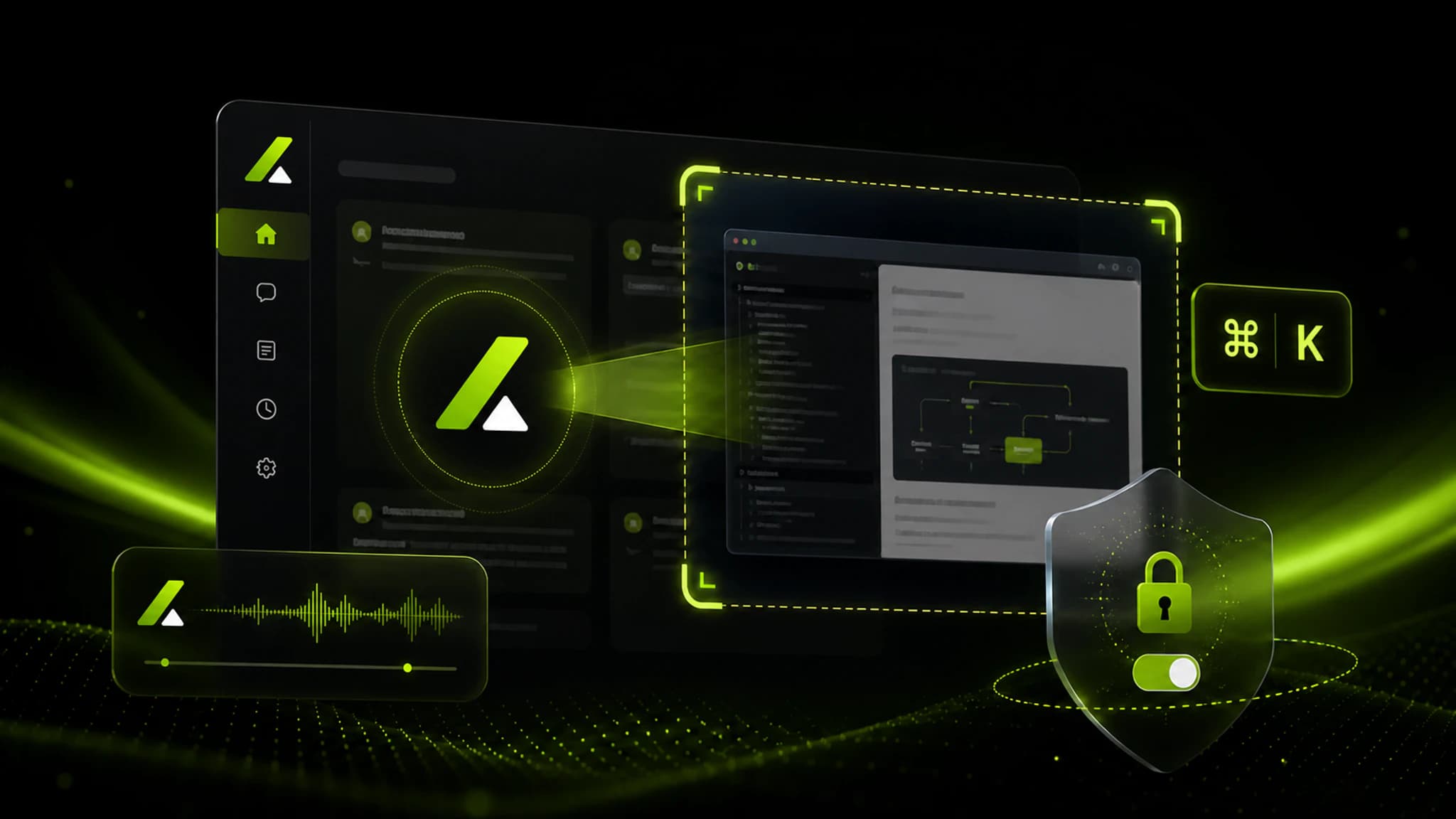
Version 1.0.23 introduced the Offer.cc desktop app with global shortcuts, window visibility controls, and a cross-device viewing flow. The shortcuts below describe that release; check the download page and the current desktop app for today’s controls.
How this version worked
- Download and install the desktop app, then sign in to Offer.cc.
- Open Offer.cc in a mobile browser and enter the same interview session.
- Use
Cmd + Bon macOS orCtrl + Bon Windows to show or tuck away the desktop window. - Use
Cmd/Ctrl + Enterto capture the prompt shown on screen at that time. - Review the prompt, constraints, and solution direction on the phone.
v1.0.23 changes
Added
- Menu-bar display: The app icon could appear in the macOS menu bar without a Dock icon.
- Close-action choice: Closing the window offered a choice between tucking away the window and quitting the app.
- Shared-view handling: The desktop window used content protection. Results vary by meeting app, operating-system version, and sharing scope, so the meeting app’s sharing preview remains the source of truth.
Improved
- Improved global-shortcut response.
- Added a macOS DMG compatible with Apple Silicon and Intel chips.
Fixed
- Fixed a conflict between the close button and the visibility shortcut in some environments.
- Fixed cross-device sync delays on some unstable connections.