

Tech Explained
How Offer.cc is Still Undetectable
From browser sandboxes to the native desktop layer, see exactly what interview platforms can access.
By Offer.cc · Published August 24, 2026 · Updated August 28, 2026
The Browser Bubble
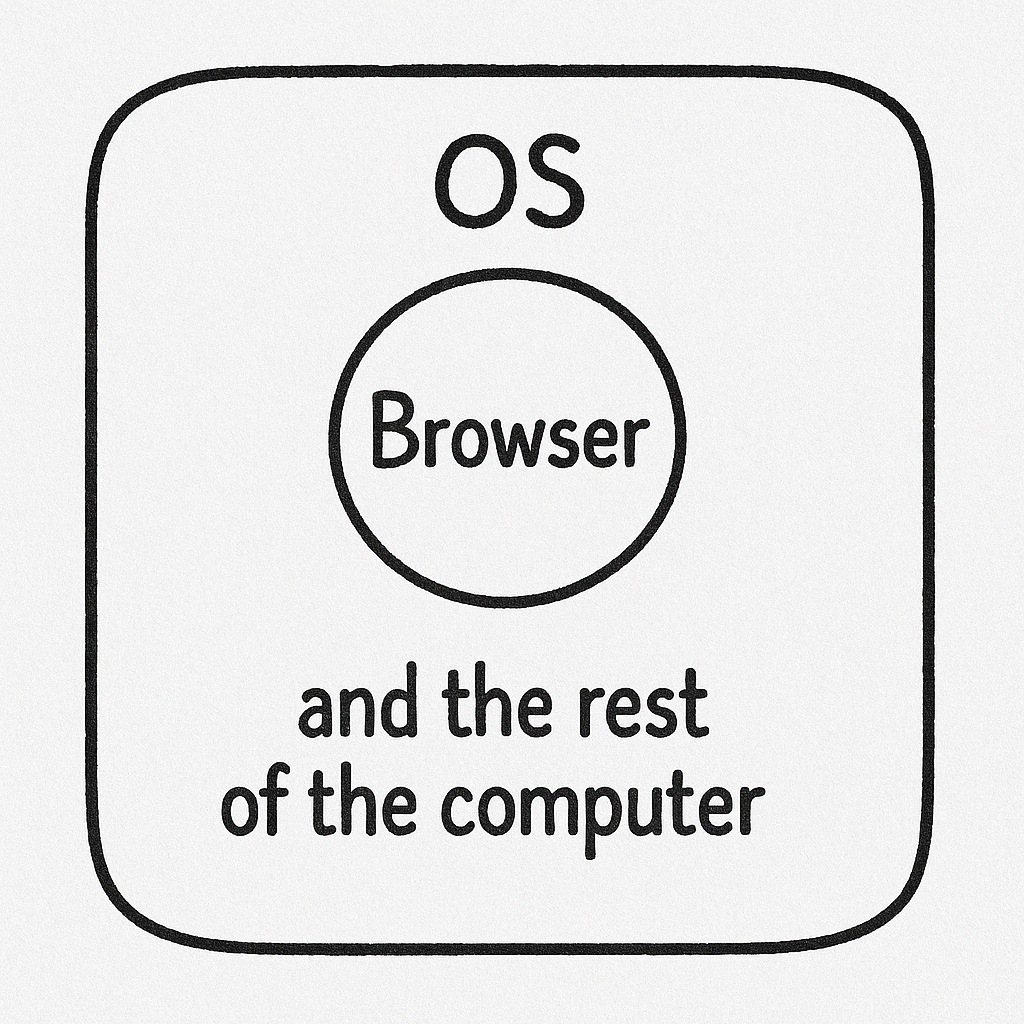
Most coding interviews happen right in your web browser, like on HackerRank, CoderPad, or CodeSignal. Browsers are designed like secure bubbles: what happens inside one tab generally can't see or interfere with anything outside of it. This is called sandboxing, and it's a core security feature.
Think of the interview website running in a browser tab. It can show you the coding problem and run its own scripts, but it's walled off from the rest of your computer. It simply doesn't have permission to peek at other apps you might be running.
What Interview Platforms *Can* See (Inside the Bubble)
Within their own tab, interview platforms can use browser features to monitor some things:
- Losing Focus / Switching Tabs: They know if you click outside the browser window or switch tabs. But they don't know what you switched to.
- Pasting Code: They can tell if you paste something into the code editor, potentially flagging large or frequent pastes.
- Webcam Monitoring (Sometimes): Some platforms might use your webcam to monitor eye movement, flagging excessive looking away.
- Screen Sharing (If Requested): If you're asked to share your screen through Zoom, Meet, or the platform itself, they can see what you choose to share.
They might also try to guess based on typing speed, but it's often unreliable.
What They *Cannot* See (Outside the Bubble)
Crucially, because of the browser sandbox and how operating systems work, these platforms cannot reliably:
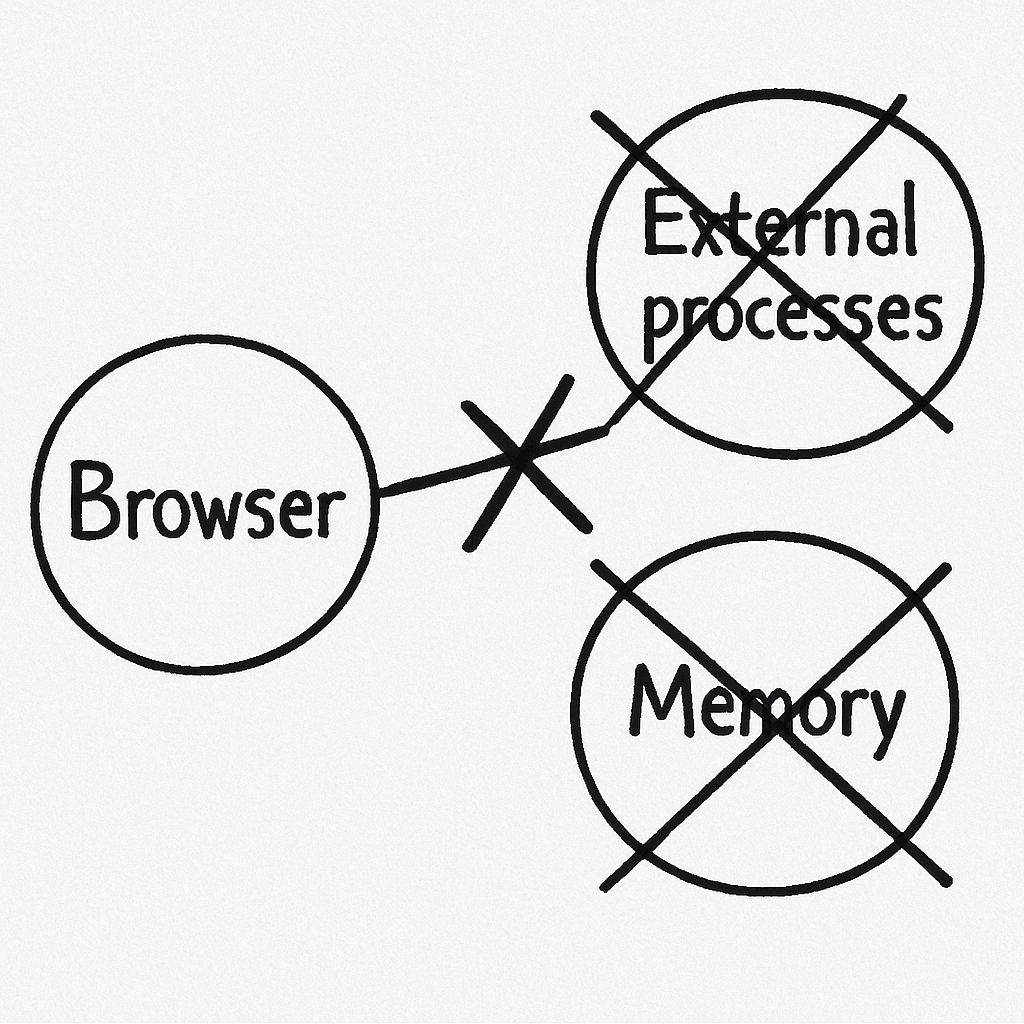
- Know What App You Switched To: When you lose focus, the browser gives no information about which other application became active.
- Scan Running Apps: There's no way for a website to get a list of other programs running on your computer. This is a fundamental operating-system security boundary.
- Read Other App Memory: Accessing the memory of other applications is strictly forbidden by your operating system for security reasons.
- Track Every Click or Keystroke Globally: They can only see clicks and keys typed inside their own browser tab, not system-wide.
- See Invisible Native Apps During Screen Share: While screen sharing shows your desktop, applications designed to stay out of captures, like Offer.cc, don't appear in the shared view or screenshots.
Why Offer.cc is Different & How It Counters Detection
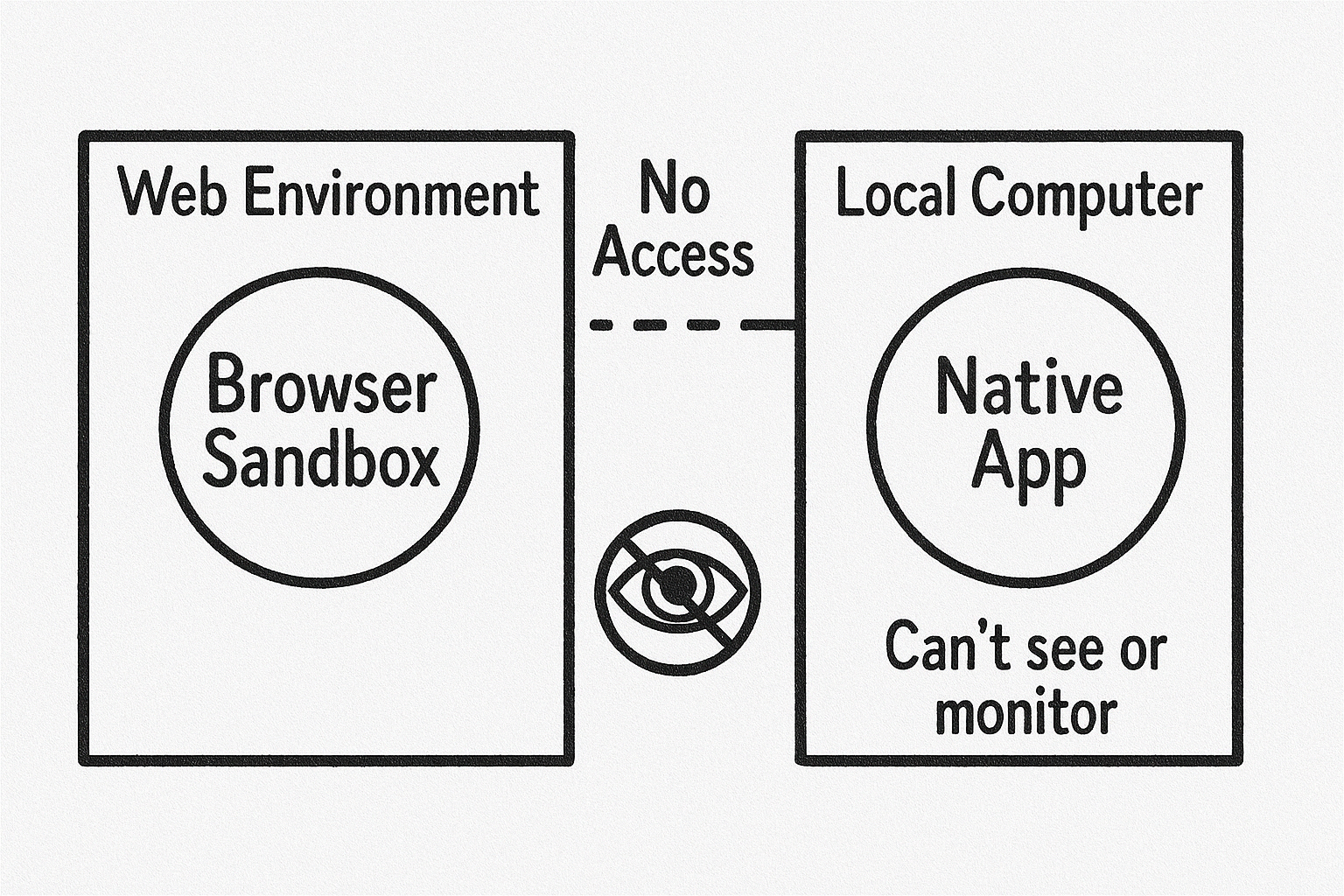
Offer.cc isn't a browser extension; it's a separate native desktop app. This fundamental difference is key to avoiding detection:
- It Lives Outside the Bubble: The browser running the interview has no connection to Offer.cc and simply cannot see it or interact with it. Offer.cc operates independently with its own data.
- Invisible to Screen Sharing: The app uses operating-system APIs and window properties that exclude its window from screen captures, recordings, and screen-sharing sessions such as Zoom and Meet. This is a standard OS feature used by overlay and privacy-focused applications, not a browser hack.
- No Focus or Active-Tab Change & Global Hotkeys: When you toggle Offer.cc with ⌘/Ctrl+B, it uses standard OS-level global hotkey registration. Your cursor focus stays in the browser and the active browser tab does not change.
- Webcam / Eye-Tracking Counter: Use ⌘/Ctrl plus the arrow keys to move the Offer.cc window directly over the assessment's coding area, so solutions stay close to where you're already looking.
- Reasoning Support: Offer.cc provides code, line-by-line comments, and high-level reasoning hints, making it easier to explain the solution naturally.
- Uses Standard OS Features: Offer.cc works through normal operating-system functions, leaving no unusual footprint that typical browser-based monitoring can detect.
While platforms can detect simple events such as pasting or clicking away from a tab, Offer.cc is built to sidestep those checks and remain invisible to monitoring methods available inside a browser sandbox or standard screen share.
What About Desktop Proctoring Apps?
Some interview platforms already offer desktop proctoring, such as HackerRank Desktop App Mode. With the relevant system permissions, an installed proctoring app can inspect running applications beyond the scope of a browser page.
- Check the interview mode: Check whether the invitation requires an installed proctoring app or a locked desktop mode.
- Review inspection permissions: A desktop proctoring app may inspect running applications, including Offer.cc. Being absent from a shared screen does not prevent an application from being inspected.
- Follow the usage rules: Confirm which tools are permitted by the interview platform and the hiring team.
Before the interview, check the actual proctoring mode, application permissions, and rules for using tools.
The Bottom Line
Because coding interviews run in secure browser tabs, and Offer.cc runs as a completely separate native application, standard detection methods simply can't see it. We designed it specifically with browser security limitations in mind.
Offer.cc’s suitability depends on the actual proctoring mode and usage rules for the interview. Check the platform and hiring team’s requirements before starting.
Update
Offer.cc 3.0: What's New?
Offer.cc 3.0 is a complete rewrite from the ground up, focused on undetectability, performance, and user experience while building on the strong foundation of earlier versions. Here's a quick overview of the key improvements:
- Undetectable by Design: Built as a native desktop app that uses OS-level features to remain invisible during screen sharing and avoid browser-based monitoring.
- Invisible to Task Manager: Runs without showing the Offer.cc identity in system task managers or process lists, adding another layer of discretion.
- Audio Support: Live audio helps guide you through problems ranging from follow-up questions to system design.
- Improved Performance: Optimized for speed and responsiveness, so solutions appear without slowing down the interview.
- User-Friendly Interface: A focused, modern interface keeps the controls and answers you need within reach during the interview.
These improvements make Offer.cc the strongest version yet. Download the app and see it for yourself.
How Audio Works
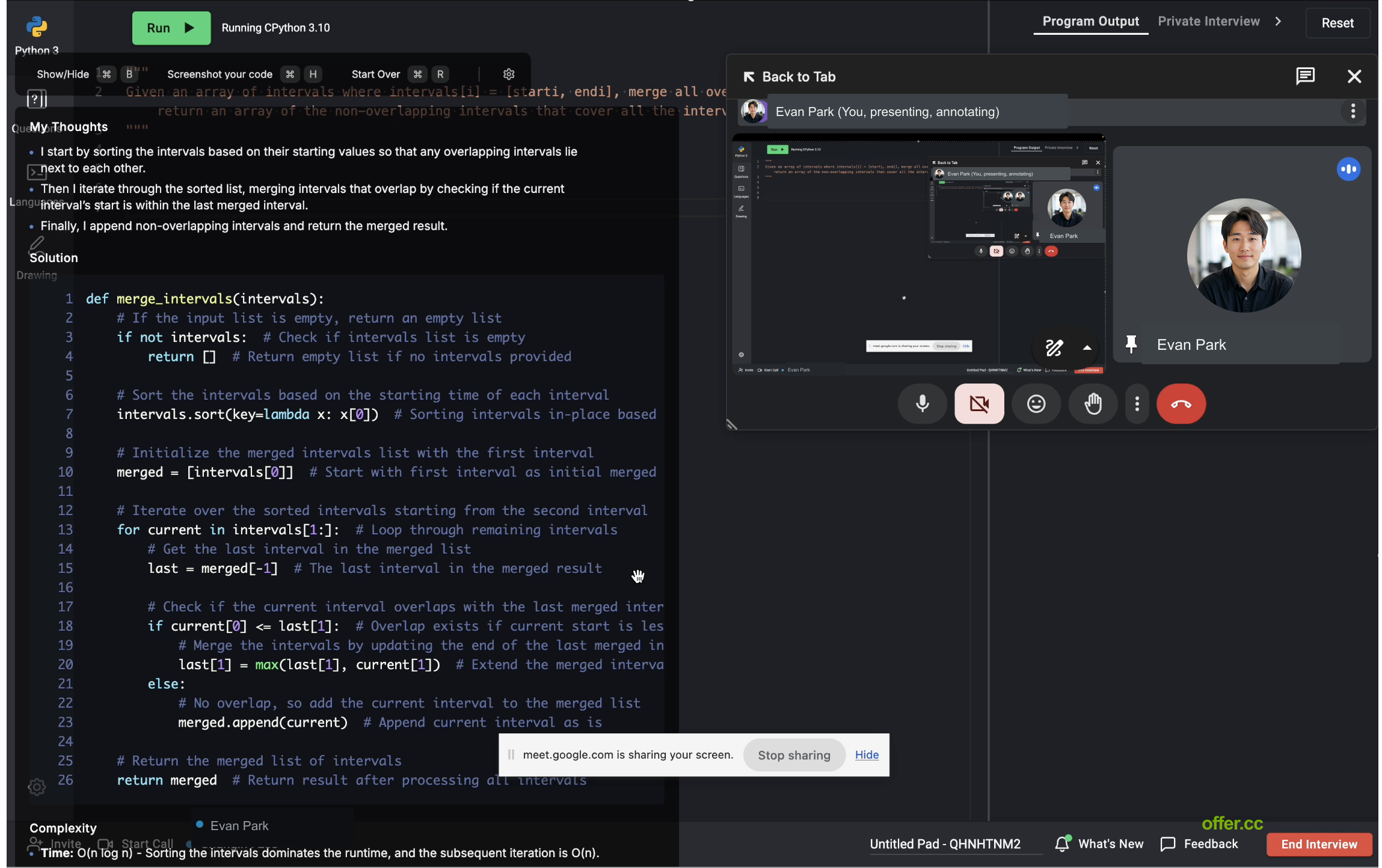
Offer.cc uses audio support to help you understand and articulate solutions during technical interviews. Here's how it works:
- Instant Explanations: The app provides explanations of code snippets and algorithms, helping you grasp concepts and answer quickly and precisely.
- System Design: Get immediate walkthroughs of system-design questions to structure your thoughts and responses.
- Follow-Up Questions: Receive guidance on follow-up questions so you can continue into deeper discussion.
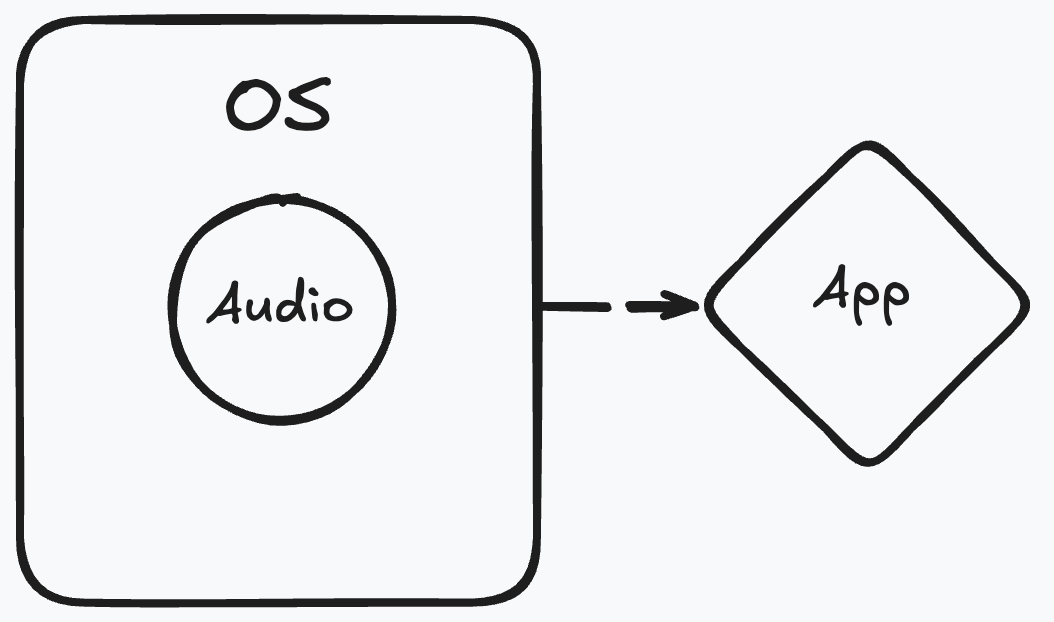
Audio complements the text response by routing system audio through the app and preparing explanations in real time while the interview stays in front.
Invisible to Task Manager
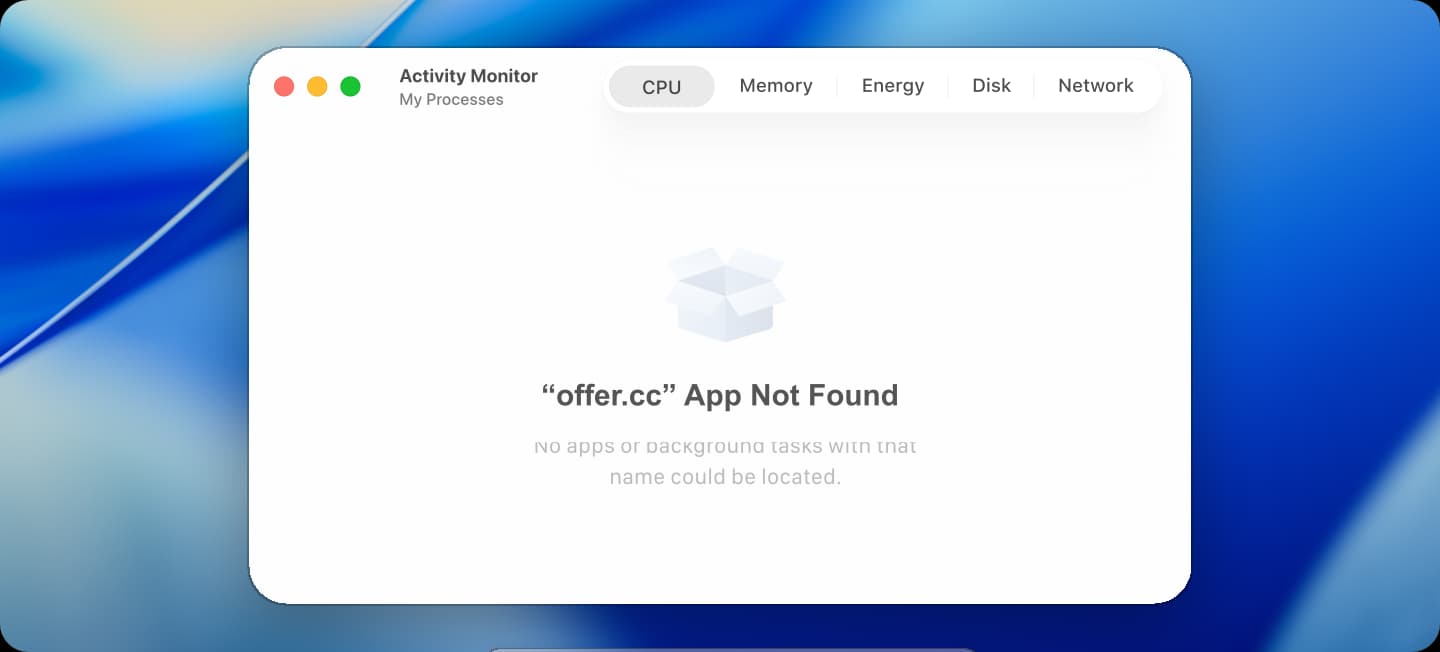
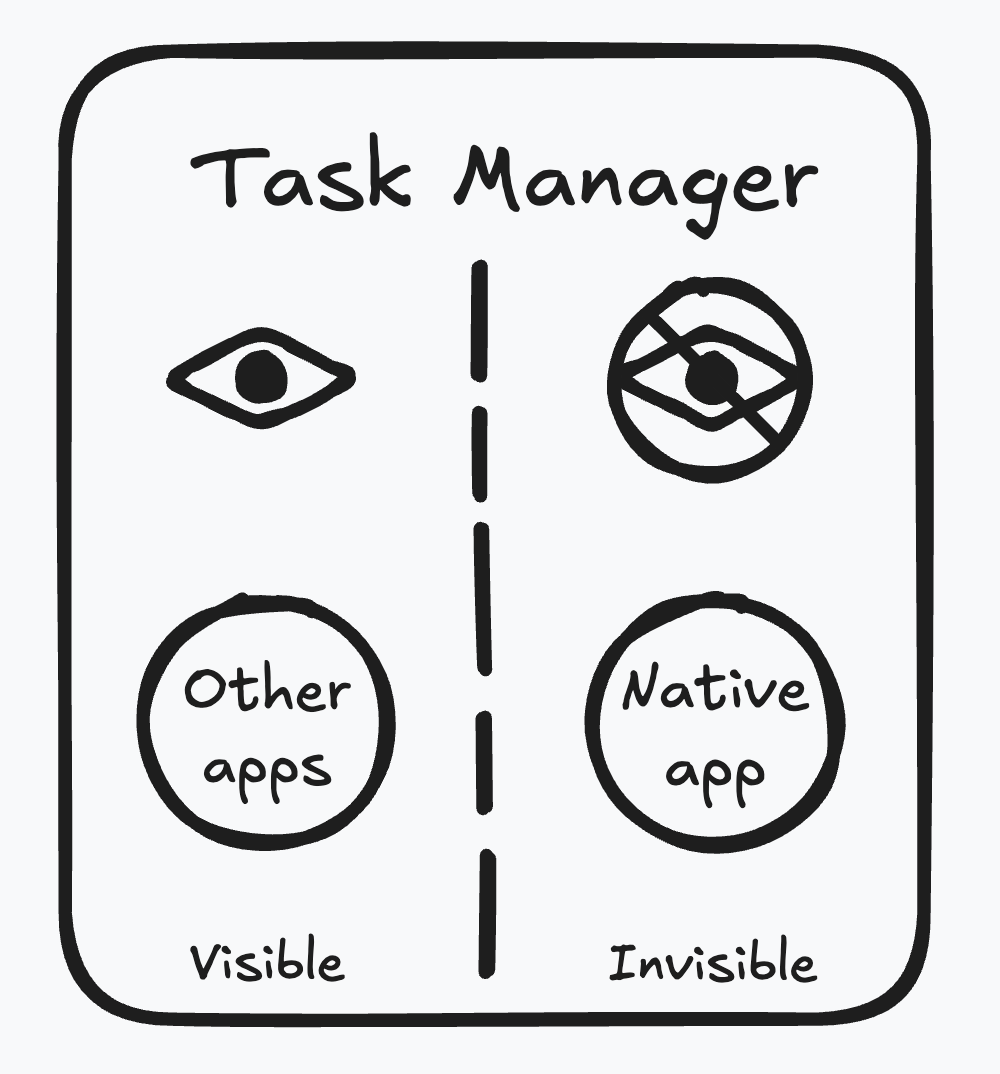
Offer.cc is designed to run without appearing under the Offer.cc identity in the system task manager or process list. Even if someone checks running applications, they won't see Offer.cc listed there.
It uses operating-system features to conceal the application's identity and change its process name. That adds another layer of discretion during an interview.
Questions? We're happy to chat more about the tech!