

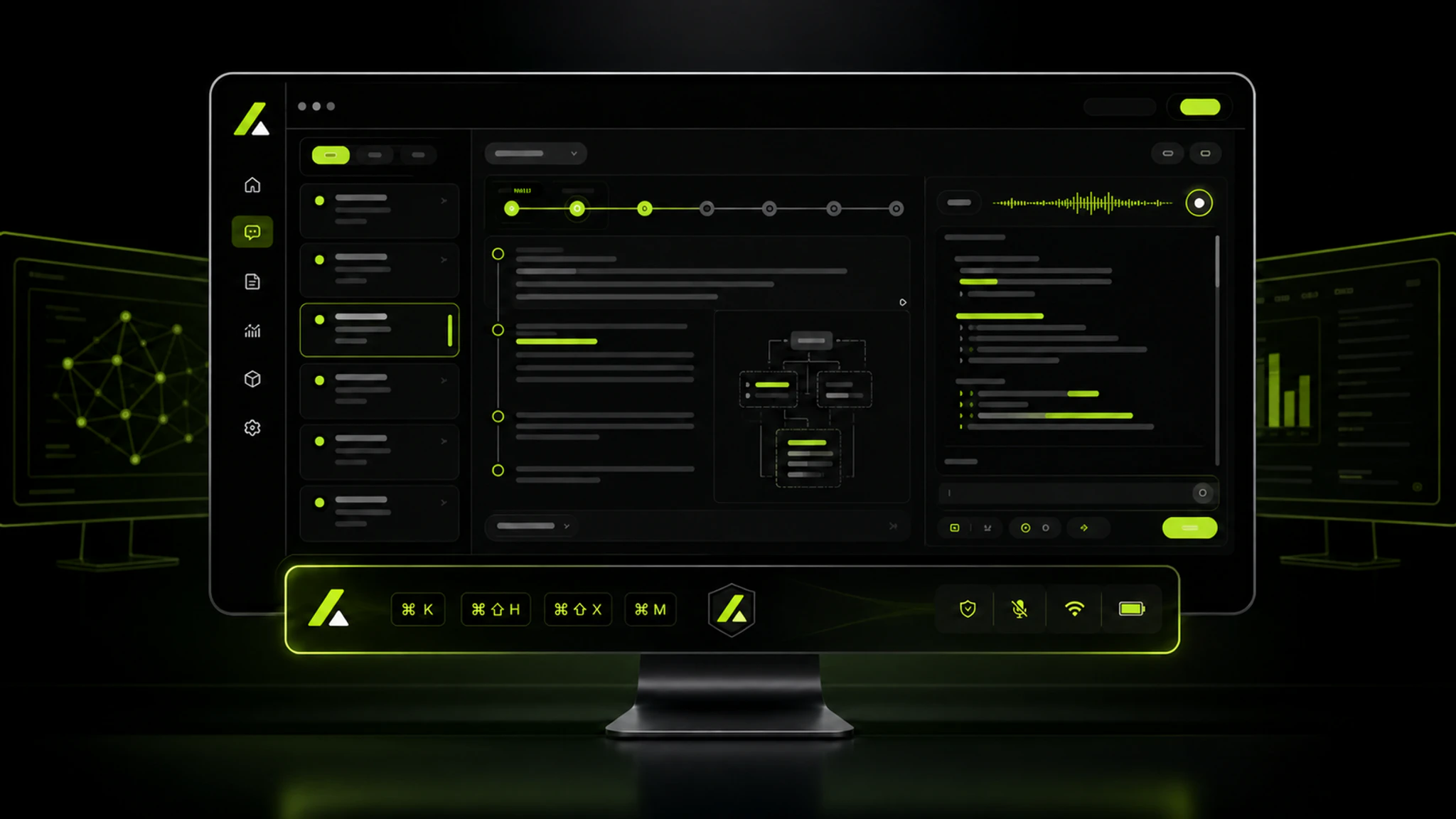
Desktop v2.0 brought sign-in, interview creation, answers, and window controls into one desktop window.
What changed in v2.0
Sign-in and interviews moved into the desktop app
Users could sign in, create an interview, read questions and answers, and open the interview-history entry available in that release. These actions were available inside the desktop window.
Window visibility and shared views
Use Cmd + B on macOS or Ctrl + B on Windows to tuck away or show the app window and status icon. The window also used operating-system content protection. The shared result varies by meeting app, operating-system version, and sharing scope, so the meeting app’s preview remains the source of truth.
Close actions, position, and state recovery
- Closing the window offered three actions: tuck it away, quit the app, or cancel.
- Window size and position were saved for the next launch.
- If a previously used secondary display was disconnected, the window returned to a visible display.
- Starting and ending an interview updated the status icon.
Permissions and installation
The first launch requested screen-recording and microphone permissions together. On macOS, the menu-bar entry remained available while the Dock icon stayed hidden by default.
Flow and fixes
- Fixed window-position issues when switching displays.
- Fixed screenshot-upload timeouts on some unstable connections.
- Fixed the Windows taskbar icon occasionally failing to appear.
Shortcuts in this release
- Screenshot:
Cmd + Enteron macOS orCtrl + Enteron Windows - Show or tuck away the window:
Cmd + Bon macOS orCtrl + Bon Windows
These shortcuts describe v2.0. Check the download page and current desktop app for today’s controls.